
Updated . A 4-minute read by the BundlePilot team at Boldnsmart.
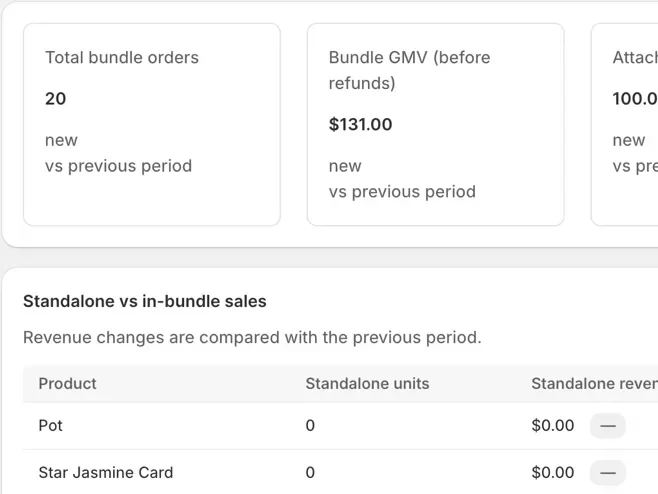
Short answerWatch bundle orders, bundle sales, attach rate and average order value for bundle and non-bundle orders, then compare each product’s sales on its own with its sales inside bundles. In BundlePilot these sit on the Analytics page, and Bundle orders lists every order’s picks.
BundlePilot is a Shopify app built for this. See it on the Shopify App Store.
What to measure
- Bundle orders and bundle sales. How many orders include a bundle, and what they bring in before refunds.
- Attach rate and total savings. Shown next to bundle orders, each against the previous period.
- Average order value. For bundle and non-bundle orders, side by side.
- Standalone vs in-bundle. Each product’s units and revenue on its own and inside bundles.
Where to find the numbers
On the Home screen, on the Analytics page and on the Bundle orders page in BundlePilot.
Check your numbers step by step
- Install BundlePilot
Install it from the Shopify App Store. The setup guide on Boldnsmart walks through the install and the theme editor.
- Open Analytics
See total bundle orders, bundle GMV before refunds, attach rate and total savings, each compared with the previous period.
- Compare standalone and in-bundle sales
The table lists each product’s units and revenue on its own and inside bundles.
- Open Bundle orders
Each order’s picks and gift message, ready for packing.
Reading the numbers
Change one thing at a time, such as one surcharge, and compare a few weeks before and after. The pricing guide covers surcharges.