

Updated . A 6-minute read by the BundlePilot team at Boldnsmart.
BundlePilot is a Shopify app built for this. See it on the Shopify App Store.
Why one bundle product with fixed variants breaks down
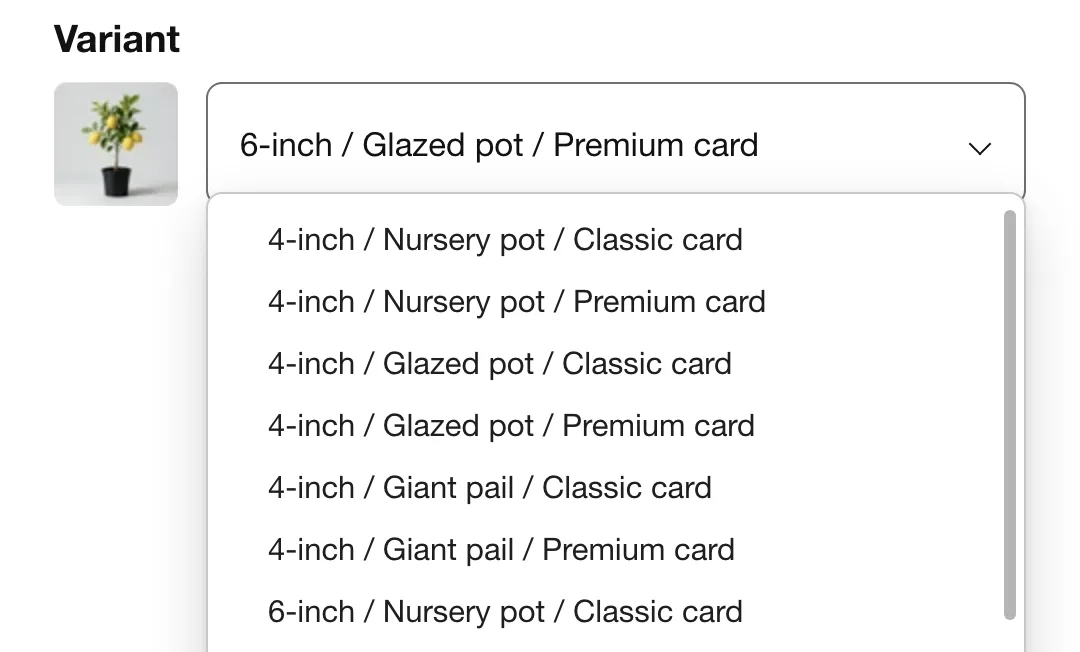
The quick way to make a bundle in Shopify is a single product whose variants describe every combination. That works for one or two options and stops working the moment each item has choices of its own.
- Every option multiplies the list. Three tree sizes, three pots and two cards make 3 × 3 × 2 = 18 variants to create, name, price and photograph; a fourth pot makes 24.
- Stock drifts. The bundle’s variants keep their own inventory, so you end up adjusting the tree, the pot and the bundle by hand.
- Shoppers scroll a long dropdown instead of making three simple choices.
What “a variant per slot” means
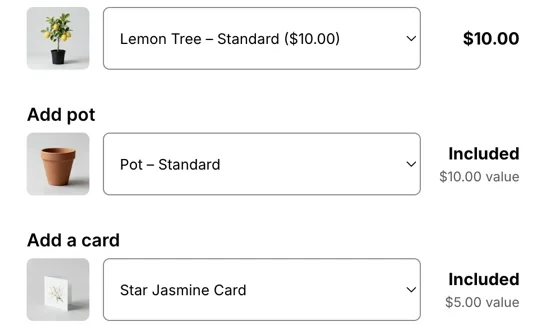
A slot is one position in the bundle: the tree, the pot, the card. Each slot shows its own choices, the shopper picks one in each, and the bundle price is worked out from those picks. Two kinds of slot cover most bundles:
- One product’s variants. The card slot offers the greeting card’s own variants: classic or premium.
- A choice between products. The pot slot offers three different pot products: a nursery pot, a glazed pot and a giant pail.
Research backs letting shoppers choose. In three experiments, two further studies and a meta-analysis, Kobuszewki Volles and co-authors found that “incorporating bundles into the assortment and having consumers select these bundles increases overall purchases” (Journal of Retailing and Consumer Services, 2024). Fixed bundles carry a warning: bundle promotions were found “far more effective at inducing switching than at boosting category sales” (Foubert and Gijsbrechts, Journal of Marketing Research). Both studied grocery products, not a Shopify app.
How to set it up in BundlePilot
- Install BundlePilot
Install it from the Shopify App Store. The setup guide on Boldnsmart walks through the install and the theme editor.
- Create the bundle and pick the main product
Give the bundle a title, such as “Lemon tree gift bundle”, and choose one main product. Its own Shopify variants become the size selector shoppers see first. BundlePilot creates the bundle’s product in your store and publishes it to your Online Store.
- Add complimentary products
Add each extra item as a complimentary product. For each one, choose whether the slot offers one product’s variants (classic or premium card) or a choice between products (a nursery pot, a glazed pot or a giant pail).
- Set what each option costs
Leave standard options included at $0 and add a dollar surcharge to premium ones, for example +$6 for the glazed pot. The product page shows that surcharge next to the option.
- Switch it on and test it like a shopper
Switch on the Bundle Builder block and the cart lines embed as in the setup guide on Boldnsmart. Then pick a different variant in each slot, place a test order and check that each item’s inventory went down.
Ready to give each item its own size?
Watch shoppers pick sizes: install BundlePilot from the Shopify App StoreCommon snags
Add to cart says Sold out
One of the bundle’s parts is out of stock. BundlePilot switches the button to Sold out so a shopper can’t order a bundle you can’t pack. Restock the part, or remove that option from the slot.
The builder or the cart line is missing
Open the Setup page in BundlePilot: it checks your live theme and points to the missing step. The setup guide on Boldnsmart shows each one.